
Creating an event step by step
Only the business owner or manager can create an event. Before you start, make sure your business has completed its verifications.
User Panel → Add Event (Kullanıcı Paneli → Etkinlik Ekle) or antalyacityguide.com/etkinlik-ekle
1. Basic information
- Event Name (Etkinlik Adı) (up to 160 characters)
- Event Category (Etkinlik Kategorisi)
- Short Summary (Kısa Özet) (up to 180 characters): Shown in listings; describe it in a single sentence.
- Detailed Description (Ayrıntılı Açıklama) (up to 5000 characters)
2. Date and time
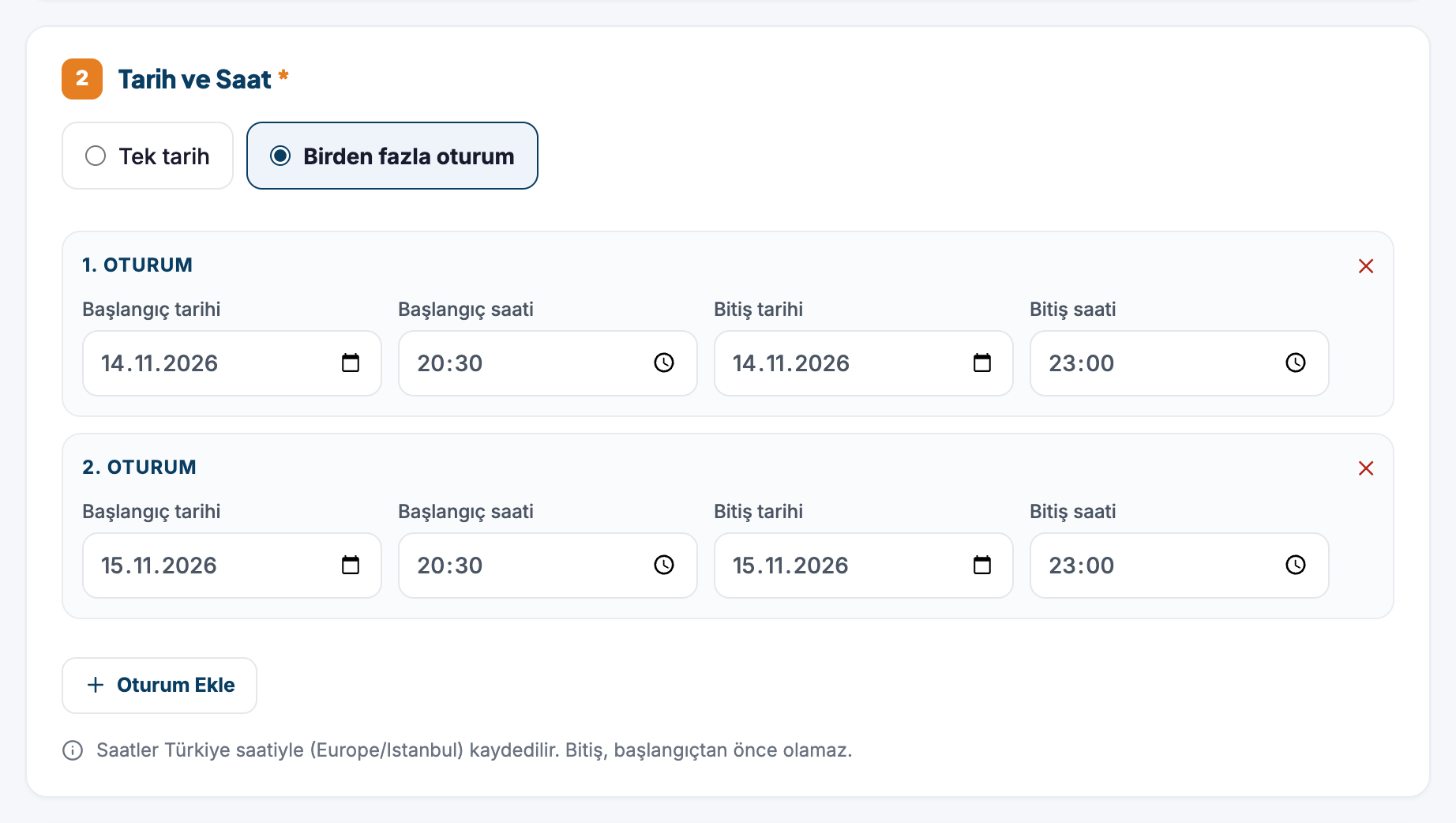
- Select Single date (Tek tarih) or Multiple sessions (Birden fazla oturum). You can add up to 60 sessions with "Add Session" (Oturum Ekle).
- Each session requires a Start date (Başlangıç tarihi) and Start time (Başlangıç saati). The end date and time are optional.
- The end cannot be before the start. Times are entered in Turkey time (Europe/Istanbul).
Recurring schedule
There is no automatic repeat rule; add each date as a separate session. If you have a regularly recurring schedule, an Activity may be a better fit.
3. Event venue
There are three options:
- A venue registered on the site: Select a venue that is published on our site.
- A different address: A full address, district/neighborhood and a location on the map are required. The venue name and region are optional.
- Online event: A Join Link (Katılım Bağlantısı) is required.
4. Admission and tickets
- Free (Ücretsiz) or Paid (Ücretli). If you select Paid, enter a Price (Fiyat) (greater than 0) and Currency (Para Birimi) (TRY, EUR or USD). Details: Pricing options.
- Ticket / Application Link (Bilet / Başvuru Bağlantısı): Ticket sales or applications take place on your own system; Antalya City Guide does not take payments.
- Capacity (Kapasite) (1–100,000), Age Limit (Yaş Sınırı) and Admission Notes (Katılım Açıklaması) (up to 500 characters) are optional. Capacity is for information only and does not limit registrations.
5. Images
A cover image is required. You can upload a total of 10 images, including the cover. Guidelines: Cover image.
6. Additional information
Filling in the Event Language (Etkinlik Dili), Target Audience (Hedef Kitle), Setting (Alan) (Indoor / Outdoor / Indoor and outdoor), Accessibility Information (Erişilebilirlik Bilgileri) and Cancellation or Schedule Change Note (İptal veya Program Değişikliği Notu) fields helps visitors.
7. Submit
- Check the confirmation box. The box declares that the information is accurate and that you have the right to use the images.
- If you are not finished, press "Save as draft" (Taslak Olarak Kaydet); if you are ready, press "Submit for Review →" (İncelemeye Gönder →).
- The event is published after it has been reviewed by the site administration. Track its status in the User Panel → My Content (İçeriklerim) tab.
If it is rejected
The content goes back to draft and a "Rejection reason" (Ret nedeni) appears in the panel. Make your corrections and use the "I've fixed it, resubmit for review" (Düzelttim, yeniden incelemeye gönder) option.
Editing a published event
Your changes are sent for approval. Until they are approved, the page continues to show the previous version, and the panel shows "Change awaiting approval" (Değişiklik onay bekliyor).
After the event ends
When the last session has ended, an "Ended" (Sona erdi) label appears on the page and the ticket area shows "This event has expired." (Bu etkinliğin süresi geçmiştir.). The page stays published.