
Signing up and managing your profile
When you become a member of Antalya City Guide, you can save your favorites, see your reservations and, if you have a business, add content. This guide covers registration, email verification, signing in and your profile settings.
1. Create an account
- Go to antalyacityguide.com/kayit-ol.
- Choose an Account Type (Hesap Türü):
- Individual (Bireysel): To use the site and keep track of your favorites and reservations.
- Business (İşletme): If you want to add content (activities, events, venues, accommodation). For details, see Creating a business profile.
- Enter your Email (E-posta) and Password (Şifre) (at least 6 characters). First Name (Ad), Last Name (Soyad) and Phone (Telefon) are optional.
- Tick the "I have read and accept the KVKK and Privacy Policy." (KVKK ve Gizlilik Politikası'nı okudum, kabul ediyorum.) box and submit the form. KVKK is Turkey's personal data protection law.
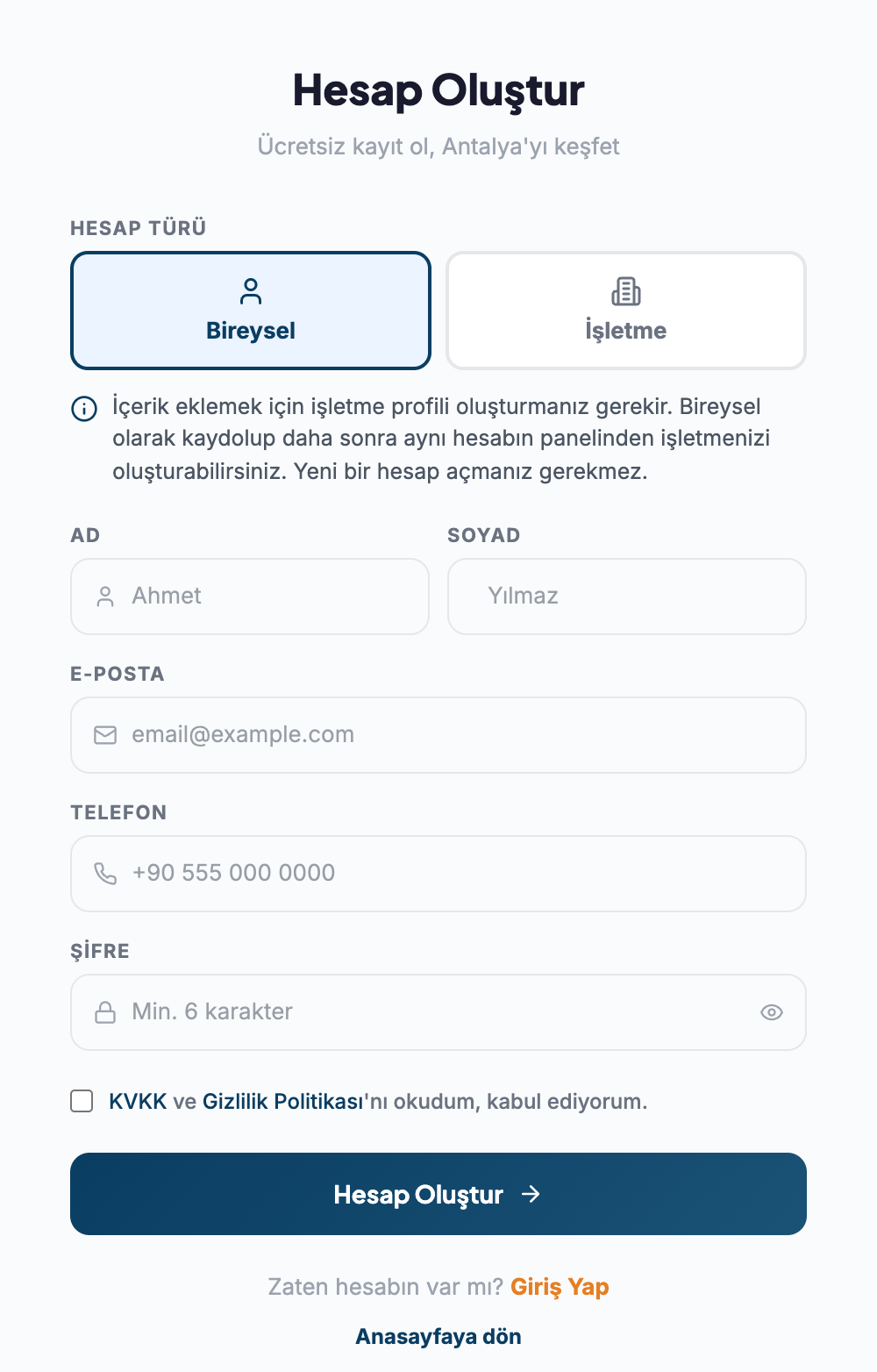
Individual first, business later
You can sign up as an individual and create your business later from the panel of the same account.
2. Verify your email
After you register, the Check your email (E-postanı kontrol et) screen opens. The email you receive gives you two options:
- 6-digit verification code: Type it into the box on the screen. The code is valid for 1 hour.
- Verification link: Just click it. The link is valid for 24 hours.
Once you use one, the other stops working. If the code is entered incorrectly 5 times, it is cancelled; request a new one.
Unverified accounts can't sign in
If you try to sign in without verifying your email, a Resend verification email (Doğrulama e-postasını yeniden gönder) button appears on the sign-in screen.
3. Sign in
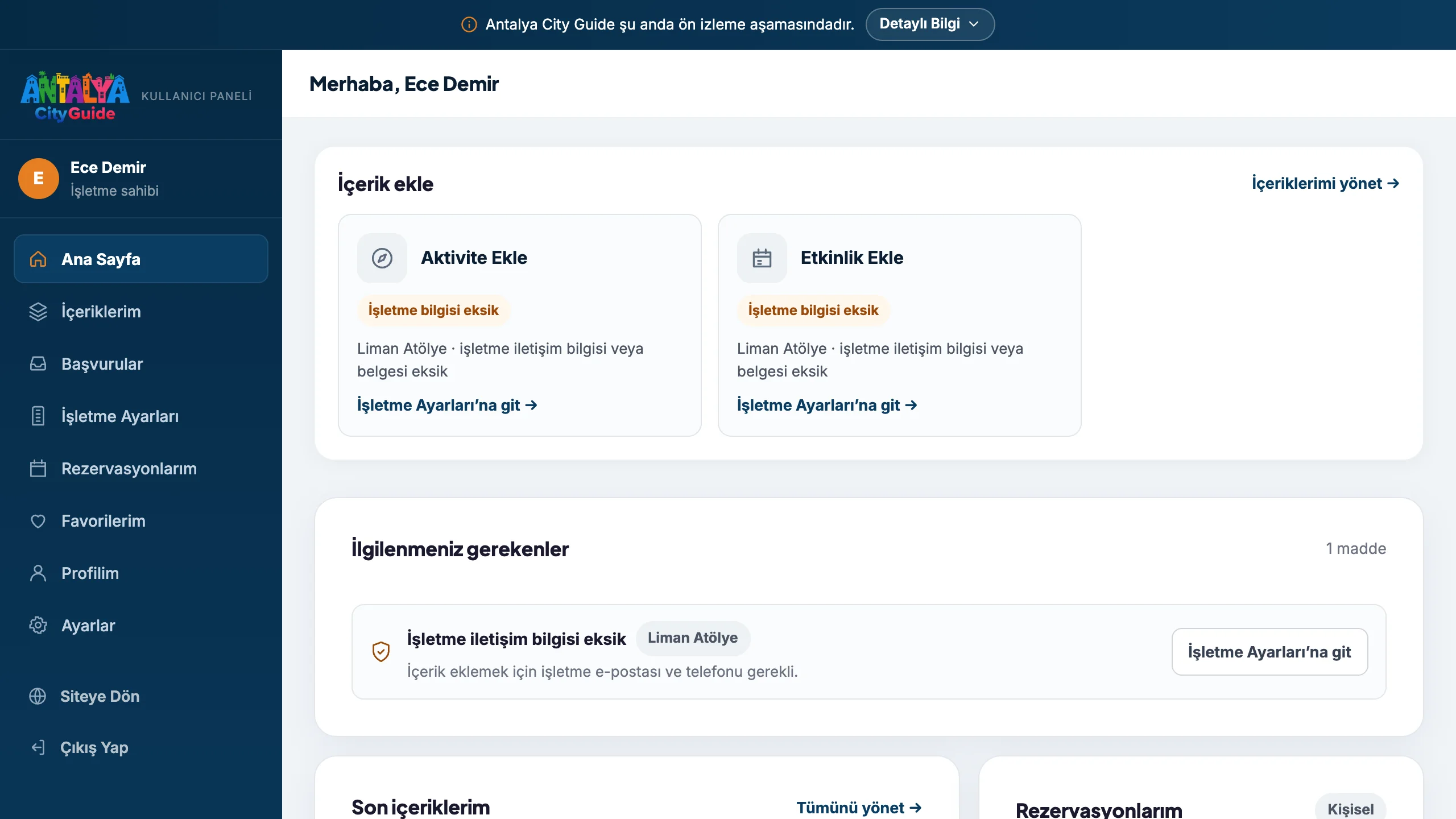
Sign in with your email and password at antalyacityguide.com/giris-yap. After signing in, you are taken to the User Panel (Kullanıcı Paneli).
If you forgot your password, use the Forgot Password (Şifremi Unuttum) link. The link you receive is valid for 1 hour. Your new password must be at least 8 characters long. When your password is reset, you are signed out on every device where your account is open.
4. Manage your profile
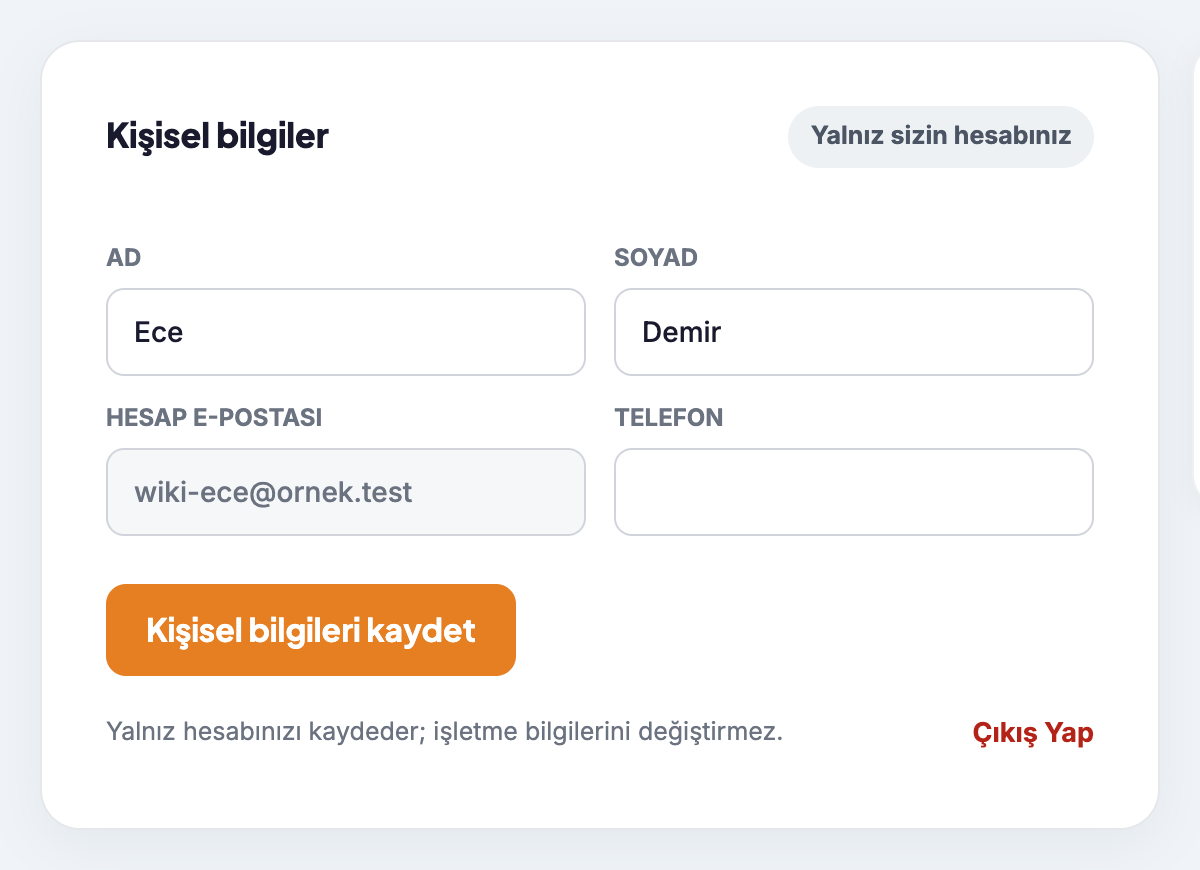
On the User Panel → My Profile (Profilim) tab, change your First Name, Last Name and Phone details and press the Save personal information (Kişisel bilgileri kaydet) button. This only updates your personal account; it doesn't affect your business details.
The panel also includes:
| Tab | What it's for |
|---|---|
| My Reservations (Rezervasyonlarım) | Reservations you've made |
| My Favorites (Favorilerim) | Content you've saved |
| Settings (Ayarlar) | Account deletion request |
Your account email can't be changed
Your account email is read-only in the panel. If you need to change it, contact us.
5. If you want to delete your account
Follow Settings → Account & My Data → "Create account deletion request" (Ayarlar → Hesap ve Verilerim → "Hesap silme talebi oluştur").
- Write a reason for deletion (Silme nedeni) and enter your current password.
- If you own a business, choose either to transfer it to another member or to create a business deletion request.
- Your request is carried out after administrator approval. Until then, you can withdraw it from the My Requests (Taleplerim) section with Cancel Request (Talebi İptal Et).