
Business verification and approval process
Verification shows that your business is real and reachable. You can't create any content — not even a draft — until the required verifications are complete.
The verification steps are on the User Panel → Business Settings (Kullanıcı Paneli → İşletme Ayarları) tab.
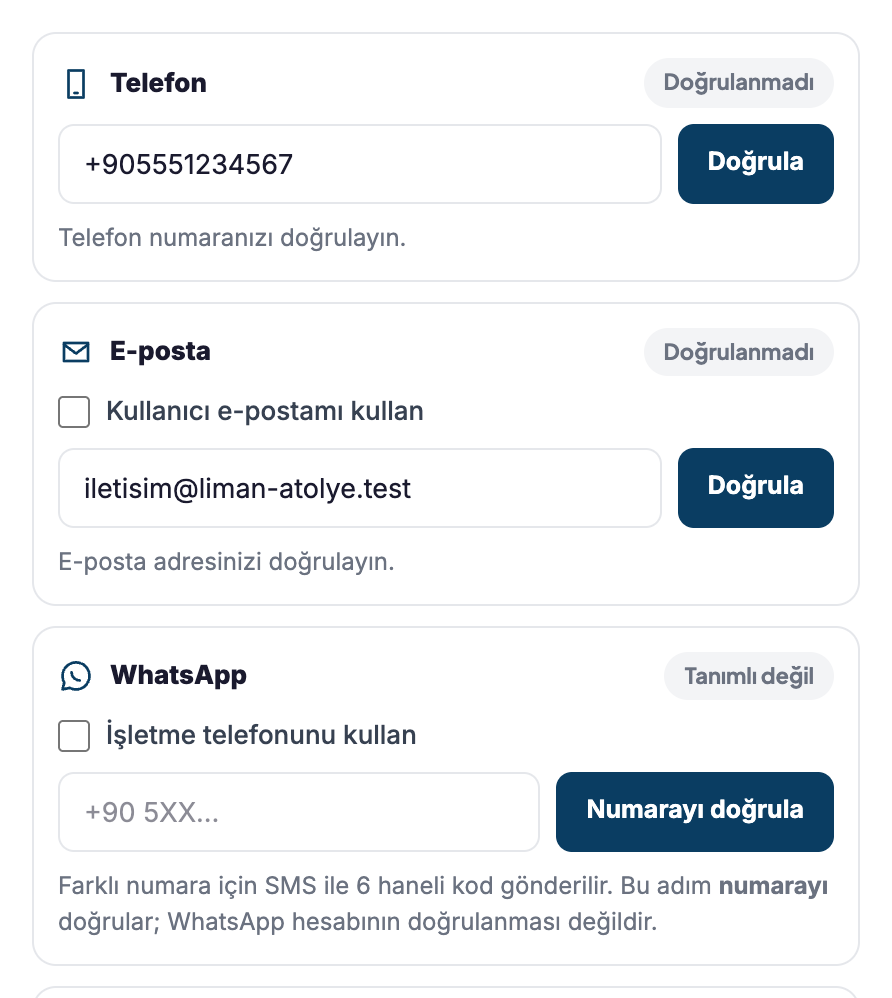
Which steps are required?
| Step | Activity / Event | Venue | Accommodation |
|---|---|---|---|
| Business email | Required | Required | Required |
| Phone (SMS) | Required | Required | Required |
| Tax certificate (vergi levhası) / business activity certificate (faaliyet belgesi) | Optional | Required | Required |
| WhatsApp number | Optional | Optional | Optional |
1. Business email
- Enter your business email address or tick the Use my user email (Kullanıcı e-postamı kullan) option.
- Enter the 6-digit code you receive. The code is valid for 10 minutes.
- The badge changes to Verified (Doğrulandı).
2. Phone
- Enter your number with the country code, for example
+90 5XX XXX XX XX. - Enter the code you receive by SMS. The code is valid for 10 minutes.
Please note
- A maximum of 5 codes can be sent per hour. If a code is entered incorrectly 5 times, it is cancelled.
- You can't use a number that has already been verified on another account.
3. WhatsApp (optional)
You can choose Use business phone (İşletme telefonunu kullan) or verify a different number by SMS. This step verifies the number, not your WhatsApp account.
4. Tax certificate or business activity certificate
- Prepare your document as a PDF, JPG or PNG file; maximum 8 MB.
- Press the Upload and submit for review (Yükle ve incelemeye gönder) button.
- Your document is visible only to your business's authorized users and the site administration.
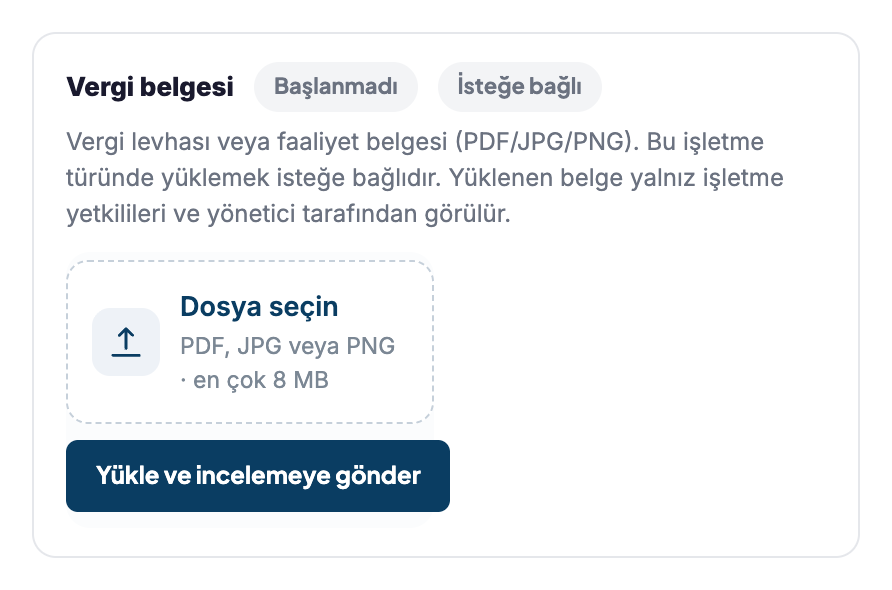
You can track the document status from the panel:
| Status | Meaning |
|---|---|
| Not started (Başlanmadı) | No document has been uploaded |
| Pending (Bekliyor) | Document uploaded, waiting in the queue |
| In review (İncelemede) | The administration is reviewing it |
| Approved (Onaylandı) | The document has been accepted |
| Rejected (Reddedildi) | Not accepted; read the Reason for rejection (Reddedilme nedeni) line and upload a new document |
| Expired (Süresi doldu) | Upload an up-to-date document |
When does your business go live?
Your business starts as a Draft (Taslak). Once the required verifications are complete, the site administration reviews it and sets it to Published (Yayında).
| Status | What you can do |
|---|---|
| Verifications incomplete | You can't create content |
| Verifications complete, business not published | You can create draft content |
| Business published | You can submit your content for review |
Approval notification
Results appear in the User Panel. Check your panel regularly.